Browser recording with webcam and mic
Record a tab, a window or the whole screen with an optional webcam bubble and microphone. Nothing to install; uploads go straight from the browser to your organisation’s storage.

Grabr · Screen recording & screenshots
Record your screen with webcam and microphone straight from the browser, capture and annotate screenshots, share an instant link with an expiry, and see who watched and when — with your files in your own organisation’s storage.
Included in every plan. No per-seat charge, no per-tool upsell.
What you can do
Record your screen with webcam and mic, capture and annotate screenshots, share a link instantly and see who watched.
Record a tab, a window or the whole screen with an optional webcam bubble and microphone. Nothing to install; uploads go straight from the browser to your organisation’s storage.
Capture a screenshot, then draw, highlight and add text before sharing it.
Every recording and screenshot gets a share link. Keep it private, open it to signed-in members of your organisation, or to anyone with the link — then add a password, an expiry date or both. Playback is served through signed URLs, so a link that has expired stops working everywhere.
See who watched, when and how far. Retention rules clean up old recordings automatically so storage does not grow forever.
Who it's for
With your AI assistant
Connect an assistant through Orbiz MCP and it works in Grabr as you, with your permissions and nothing more.
Read-only: list your recordings and get one, with its share link.
One platform
Grabr uses your organisation’s own storage and the same login as everything else. Shared links live at your organisation’s address, so a viewer always knows whose recording they are watching.
Grabr FAQ
From the blog
Why a three-minute recording beats a thirty-minute status meeting, what to record and what still needs a call, a template, and how to keep recordings findable.
A day-by-day plan for onboarding seasonal staff: contracts, documents, checklists, attendance and training for forty starters, and a clean exit at season end.
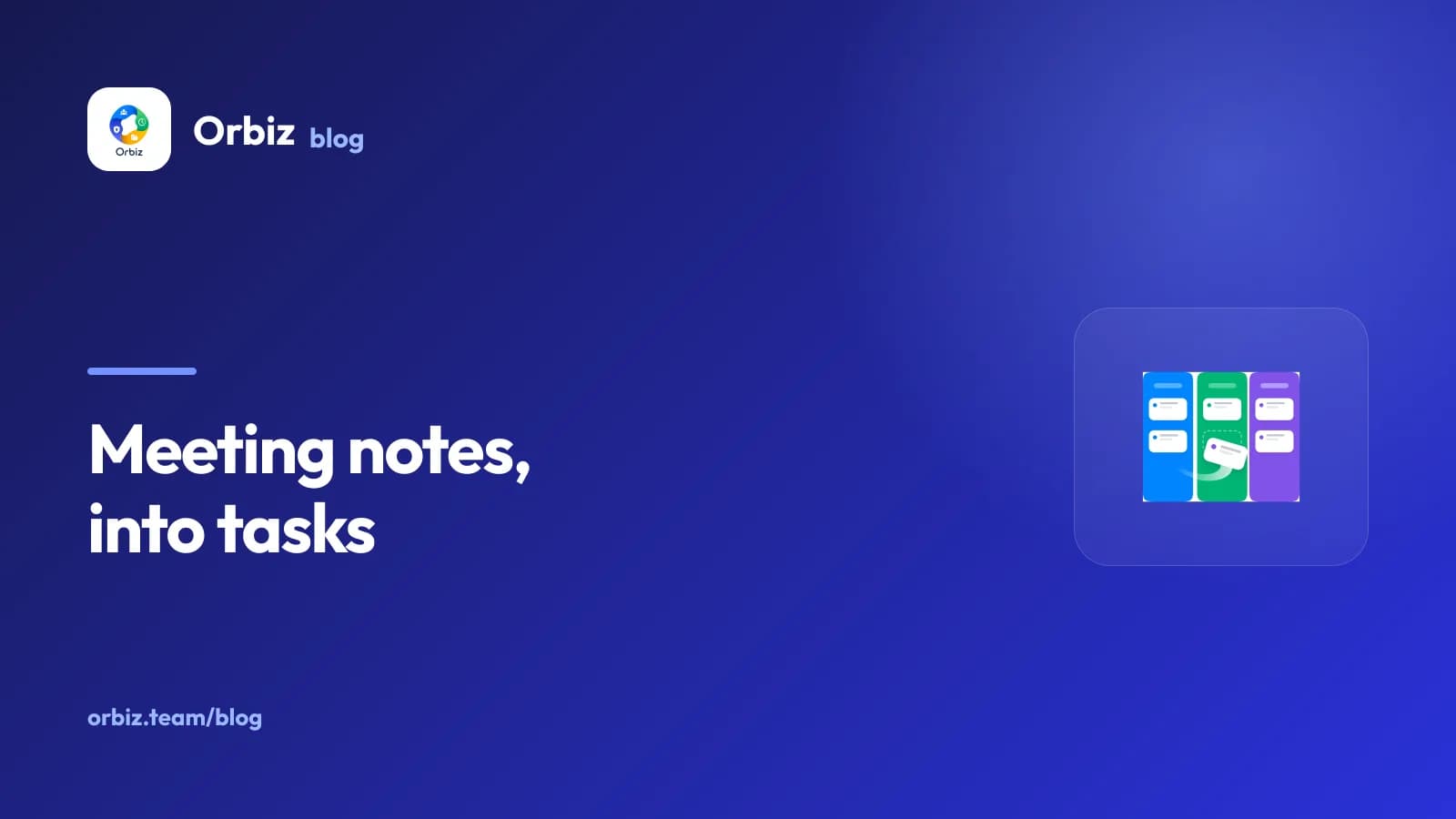
Paste meeting notes to Claude or ChatGPT, review the action items it drafts, and let it file them as issues on your Cadence board as you, with your permissions.
It comes with every plan, alongside the other tools. Tell us your team size and we set up a working organisation for you to try.
 HRMS
HRMS AMS
AMS Filespace
 Cadence
 Huddl
Huddl Vault
Vault Trackline
 Notely
 Ledgr
Ledgr